
How Free AI Tools Help Beginners Create Content Faster
Starting out as a content creator sounds exciting until you sit down and realise how much actually goes into a single post — ideas, writing, design, editing, sometimes even a voiceover. It’s a lot, especially when you’re doing it alone. That’s where free AI tools come in. They won’t do the creative thinking for you, but they take care of the repetitive, time-consuming parts, so you can focus on actually making something good.
Most beginners run into the same walls, over and over. No idea what to post this week. Not enough time to sit and edit a video properly. No design background, so graphics end up looking mismatched. And usually, no budget for expensive software subscriptions while you’re still figuring out if content creation is even something you want to stick with. Free AI tools solve a surprising amount of that. You get research help, writing help, design templates, image and video generation, and even basic automation — all without spending anything while you’re still testing the waters.
This guide walks through ten free AI tools worth knowing as a beginner, what each one is actually good for, and a simple order to use them in so you’re not trying to juggle everything at once.
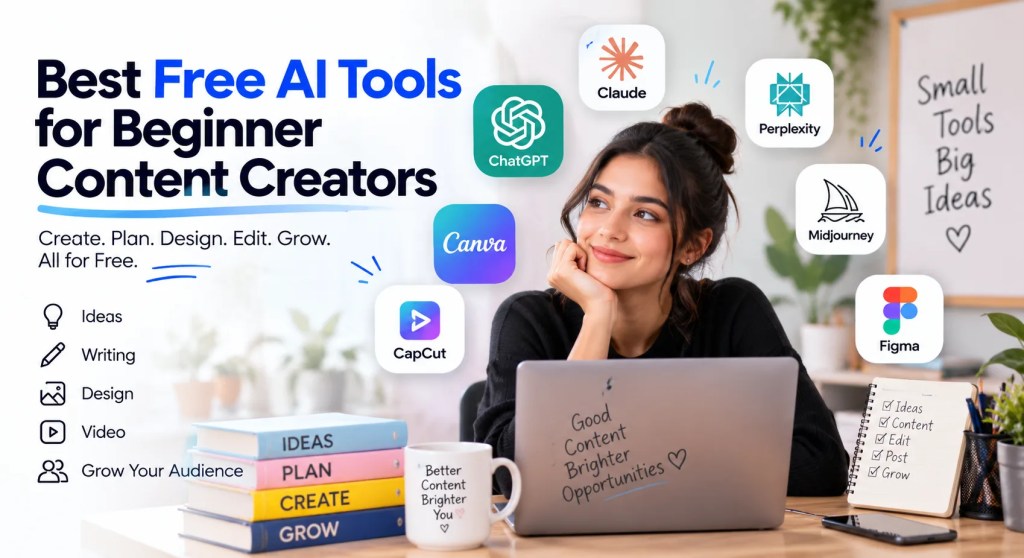
Free AI Tools for Beginner Content Creators
There’s no shortage of AI tools out there, and honestly, that’s part of the problem — too many options make it harder to start. Below are ten tools worth knowing, each one solving a different part of the content creation process. You don’t need all of them on day one. Pick what fits your workflow and add more as you go.
ChatGPT
ChatGPT is probably the first AI tool most beginners try, and there’s a reason for that — it’s genuinely useful for almost every stage of content creation. Stuck on what to post this week? Ask ChatGPT for content ideas around your niche. Need to brainstorm angles for a topic you’ve already picked? It’ll give you more directions than you probably need. It’s also handy for writing image prompts if you’re generating visuals elsewhere, coming up with caption ideas that actually match your tone, and roughing out scripts before you film anything.
Content planning gets easier too — ask it to lay out a week’s worth of post ideas, then refine from there instead of starting from a blank page every single time. It won’t replace your own voice, and it shouldn’t, since audiences can usually tell when something sounds too generic. But as a starting point for ideas, ChatGPT saves a lot of the blank-page frustration that stops people before they even begin. Most beginners end up treating it like a brainstorming partner rather than a writer, which is really where it’s strongest.
Practical tip: don’t just accept the first batch of ideas it gives you. Ask it to go more specific, more niche, or more personal to your own experience — the generic first draft of ideas is rarely the one worth posting.
Claude
Where ChatGPT is strong on ideas, Claude tends to shine once you’re actually writing. It’s well-suited to blog writing, script writing, and cleaning up drafts that feel clunky or unclear. If you’ve written something and it just doesn’t read well, Claude is good at rewriting it while keeping your original meaning intact instead of flattening it into something generic.
It’s also useful for improving readability — breaking up long sentences, simplifying jargon, tightening things that ramble — and for expanding a rough idea into something more complete when you’ve only got a half-formed thought written down. A lot of beginner creators end up with a two-tool habit here: ChatGPT to figure out what to say, then Claude to actually write it properly, since the two aren’t really built for the same job.
Practical tip: paste in your own past posts before asking for a rewrite, and ask Claude to match that tone. It keeps the output sounding like you, rather than like a generic AI voice.
Perplexity AI
Before you write anything, you need to know your facts are right, and this is where Perplexity AI earns its place. It works like a search engine crossed with an AI assistant — you ask a question, and it pulls together an answer with sources attached, so you can actually verify what you’re reading instead of just trusting whatever comes out.
Before you write anything, you need to know your facts are right, and this is where Perplexity AI earns its place. It works like a search engine crossed with an AI assistant — you ask a question, and it pulls together an answer with sources attached, so you can actually verify what you’re reading instead of just trusting whatever comes out.
Practical tip: click through to the actual sources it cites before repeating a claim in your own content. Perplexity is good, but it’s not infallible, and the source link is there for a reason.
Creator Flow
Creator Flow is built specifically for Instagram creators dealing with a flood of comments and DMs once an account starts growing. It automates responses to comments, which is genuinely one of the more repetitive parts of running an Instagram account, and it can help with lead generation by directing interested followers toward a next step — a link, a form, a DM sequence, whatever fits your setup.
For anyone trying to build an Instagram workflow that doesn’t eat their entire day, this kind of automation saves real time, especially once your audience starts growing past what you can manually reply to. It’s not something most beginners need on day one, but it’s worth knowing about before comment volume becomes a genuine problem rather than a nice one to have.
Practical tip: start with automated replies only on your most common questions — pricing, availability, that kind of thing. Trying to automate everything too early tends to feel impersonal to followers who notice.
Instagram Edits
Instagram’s own Edits app is aimed squarely at beginners who want to edit Reels without learning complicated software. It covers the basics well — trimming clips, adding auto captions, applying simple effects — without the steep learning curve of something like Premiere Pro or Final Cut.
Auto captions alone save a lot of time, since typing them out manually for every Reel gets old fast, and most viewers watch with sound off anyway. If video editing has been the thing holding you back from posting more, this is about as low-friction as it gets — it’s free, it’s built into the app you’re already using, and there’s nothing to install separately.
Practical tip: always proofread the auto captions before posting. They’re good, not perfect, and a wrong word in a caption is more noticeable than people expect.
Sarvam Creative
Not every piece of content needs to be typed out and read — sometimes you need actual audio, and Sarvam Creative handles that. It converts text into natural-sounding audio, which is useful for voiceovers on Reels, YouTube Shorts, or any video where you’d rather not record your own voice, or just don’t want to for a particular piece of content.
Not every piece of content needs to be typed out and read — sometimes you need actual audio, and Sarvam Creative handles that. It converts text into natural-sounding audio, which is useful for voiceovers on Reels, YouTube Shorts, or any video where you’d rather not record your own voice, or just don’t want to for a particular piece of content.
Practical tip: keep sentences short when writing the script for text-to-audio. Long, complex sentences tend to sound flatter and less natural once converted to speech.
Canva
Canva probably needs no introduction at this point, but it’s still one of the best free design tools available for beginners. Social media graphics, presentation slides, YouTube thumbnails, posters — Canva’s templates cover most of what a new creator needs without requiring any design background at all.
The drag-and-drop editor is forgiving, and there are enough free templates to get a consistent look across your content without paying for anything upfront. If your designs currently look thrown together, or every post looks a little different from the last, Canva is usually the fastest fix, since it nudges you toward consistent fonts, colours and layouts without you having to think about design theory.
Practical tip: save your brand colours and fonts as a Canva template once you land on a look you like. It’s a small step that makes every future design faster and more consistent.
Ideogram AI
When you need an actual image and stock photos won’t cut it, Ideogram AI is worth trying. It’s an AI image generator that’s particularly good with text-based images — posters, quote graphics, anything where the words need to look clean and legible within the image itself, which a lot of AI image tools genuinely struggle with.
For creative visuals that need to stand out on a crowded feed, it’s a solid free option to start with, especially if Canva’s templates start feeling too samey and you want something a bit more original without hiring a designer.
Practical tip: be specific in your prompts about layout and text placement, not just subject matter. The more detail you give it about where the text should sit, the cleaner the result usually turns out.
Arena AI
Video generation is still catching up to image generation in terms of quality, but Arena AI is a decent free entry point if you want to try text-to-video content. It works well for short-form social media videos where you need a quick visual without filming anything yourself.
It’s not going to replace a proper camera setup, and it shouldn’t be treated as a substitute for actually showing up on camera if that’s part of your content style. But for testing ideas, filling gaps in a content calendar, or putting together a concept video before deciding whether it’s worth filming properly, it does the job well enough.
Practical tip: keep expectations realistic. AI-generated video still looks noticeably artificial in places, so it works best for short, stylised clips rather than anything meant to look fully realistic.
Notion AI
Somewhere in all of this, you need a place to actually organise everything — ideas, drafts, deadlines — and that’s where Notion AI comes in. Beyond regular note-taking, it helps with content planning, building out a content calendar, and managing the small tasks that pile up when you’re running a content account solo.
It’s less about creating content directly and more about making sure you don’t lose track of what you’re supposed to be doing, which, for most beginners, is genuinely half the battle. A good idea written down and forgotten helps nobody — Notion AI is mostly there to stop that from happening.
Practical tip: build one simple content calendar template and reuse it every week, rather than starting from scratch each time. Consistency in your planning tends to show up as consistency in your posting.
Simple AI Workflow for Beginner Content Creators
Trying to use ten tools at once on day one is a fast way to burn out before you’ve posted anything. A simpler approach is to follow the content process in order, and only bring in a tool once you actually reach that step in your workflow. Here’s roughly how it lines up:
- Research → Perplexity AI
- Content Ideas → ChatGPT
- Content Writing → Claude
- Planning → Notion AI
- Design → Canva
- Image Creation → Ideogram AI
- Audio → Sarvam Creative
- Video Editing → Instagram Edits
- Video Generation → Arena AI
- Instagram Automation → Creator Flow
When Should You Upgrade to Paid AI Tools?
Start Free, Upgrade When You Need More
Free tools are genuinely enough to get started, and for a while, that’s all you need. Learning what works for your content, testing your voice, figuring out your niche — none of that requires a paid subscription, and spending money before you’ve even found your footing usually isn’t worth it.
But at some point, usually once you’re posting regularly, the free limits start to show. Higher usage caps, more advanced features, faster output, a workflow that feels less like juggling separate apps — that’s when a paid plan starts to make sense. It’s especially worth it for professionals, businesses, or anyone posting frequently enough that the free tiers become a bottleneck rather than a help. The general rule of thumb is simple: start free, and only pay once a specific limitation is actually slowing you down.
Conclusion
That’s ten free tools covering pretty much every part of the content creation process — research with Perplexity, ideas with ChatGPT, writing with Claude, planning with Notion AI, design with Canva, images with Ideogram AI, audio with Sarvam Creative, editing with Instagram Edits, video with Arena AI, and Instagram automation with Creator Flow.
Don’t try to use all of them from week one. Pick two or three that solve your biggest current problem, get comfortable with those, and add the rest as your content routine grows and the gaps in your workflow become obvious. Free tools can take you further than most beginners expect — the workflow matters more than the tool count, and consistency will always outperform having the fanciest setup on day one.
Frequently Asked Questions
Which free AI tool should beginners start with?
ChatGPT is usually the easiest starting point — it covers ideas, brainstorming and planning without needing anything else set up first, so there’s almost no learning curve before you get value out of it.
Which AI tool is best for content writing?
Claude tends to be the better pick for actual writing — blog posts, scripts, and cleaning up drafts so they read more naturally.
Which AI tool is best for research?
Perplexity AI, mainly because it shows sources you can actually check, rather than just handing you an answer to trust blindly.
Which AI tool is best for image creation?
Ideogram AI, especially for images that include text, like posters or quote graphics, where legibility usually matters most.
Which AI tool is best for video creation?
Arena AI for generating short videos from text, and Instagram Edits for editing footage you’ve already filmed yourself.
Can I create content using only free AI tools?
Yes, at least while you’re starting out. The tools in this list cover research, writing, design, audio and video without any cost, which is more than enough to build a consistent posting habit.
Which AI tool is best for Instagram creators?
Creator Flow for automating comments and DMs, alongside Instagram Edits for putting Reels together quickly.
Do I need paid AI tools to get started?
No. Free tools are more than enough while you’re learning the ropes — paid plans matter more once your output and audience actually grow past what free limits can handle.

Leave a Reply